
What you need
- A DoD-issued CAC (Common Access Card)
- An internet-connected computer
- A Platform One account
- 2-factor authentication — only if you’ll sign in without a CAC (for example, from a personal device)
Work through the steps in order. Skip anything you’ve already done.
Quick check
Do you already have a Platform One account?
- No — create one in the steps below.
- Yes — skip to 2-factor authentication
Create a Platform One account
GAIN uses Platform One to sign in, so you’ll create a Platform One account first. You can register without a CAC — you only need a CAC for IL4 (Impact Level 4) content, which GAIN supports.
-
Register on Platform One
Go to login.dso.mil/register (opens in a new tab) and fill out the form: first name, last name, affiliation, pay grade, unit, and a unique username.
For CAC or IL4 access, use a .mil email address. You’ll verify it after you submit.
Don’t set a password yet. You’ll set one later, during 2-factor setup, if you need it.
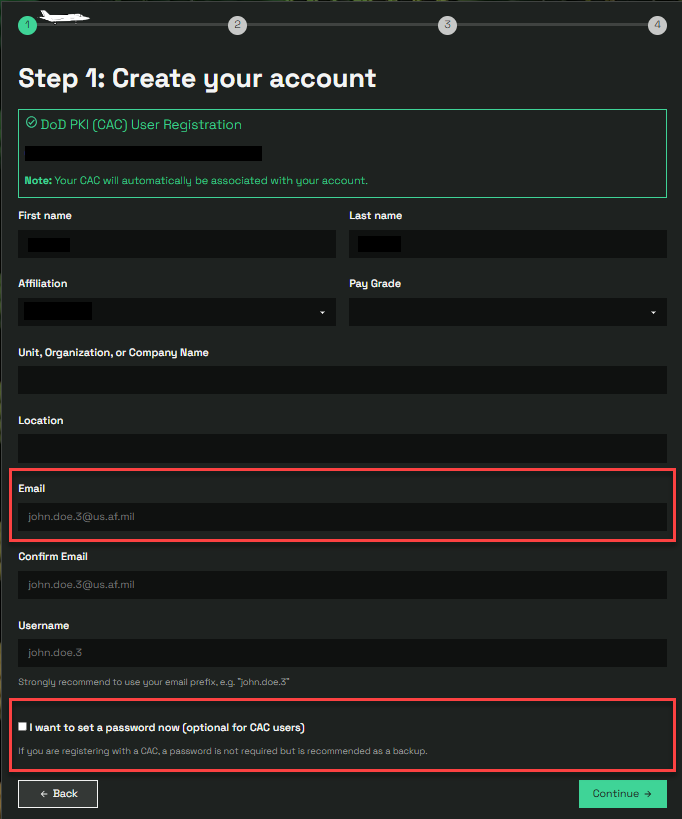
Platform One registration screen -
Verify your email
Open the verification email and click the link, then select Save. It usually arrives within a minute — check your junk folder if it doesn’t.
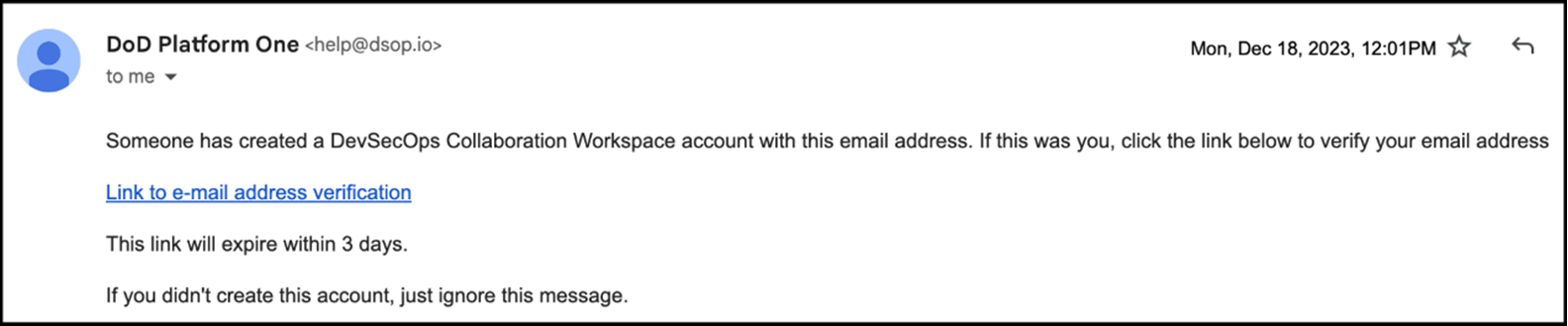
Platform One verification email -
You’re set up
Bookmark gain.il4.afwerx.dso.mil (opens in a new tab). The first time you visit, you’ll fill out a short one-time profile.
Quick check
Will you sign in without a CAC — for example, from a personal computer or phone?
- Yes — set up 2-factor authentication in the steps below.
- No — you’re all set. Sign in to GAIN
Set up 2-factor authentication
Set this up if you’ll sign in without a CAC — for example, from a personal computer or phone.
What is 2-factor authentication?
It adds a second check beyond your password, usually a code from an app on your phone. Even if someone learns your password, they can’t sign in without that second code.
What does this mean for your GAIN access?
Once it’s set up, you can sign in from any device — phone, tablet, or computer — without a CAC or VPN.
First, install an authenticator app on your phone. Microsoft Authenticator or Google Authenticator both work.
-
Log in to Platform One
On a CAC-enabled computer, sign in at login.dso.mil (opens in a new tab).
-
Open the Authenticator menu
Click Authenticator at the top right of the window.
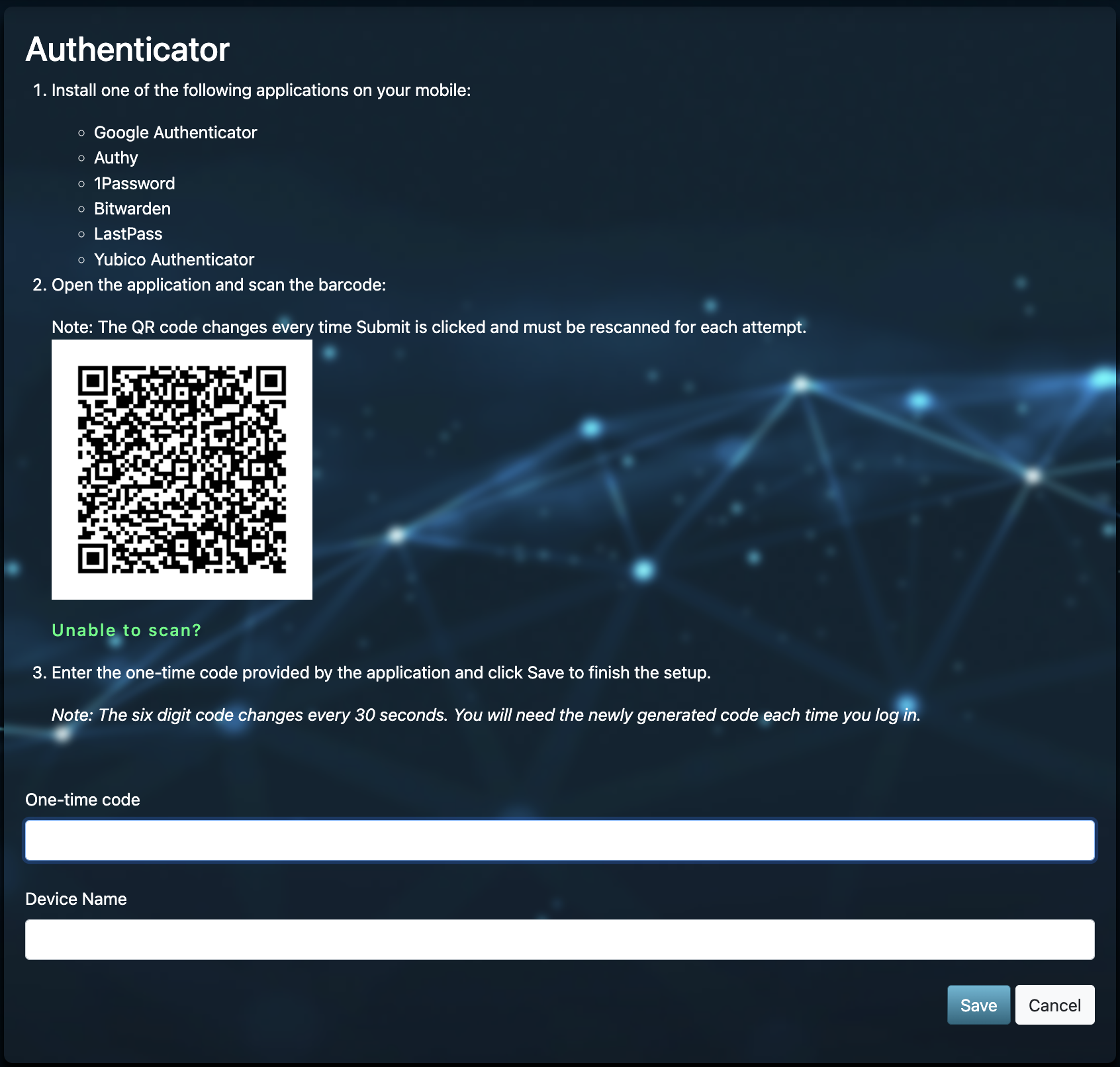
Authenticator setup in Platform One 
Where to find the Authenticator menu -
Add the account in your app
In your authenticator app, add a new account — tap + in Microsoft Authenticator, or the circle icon in Google Authenticator. Choose “Scan a QR code” and scan the code on the Platform One screen. The app shows a one-time code; type it into Platform One and name the device (for example, “iPhone”).
-
Set a password
In Platform One, open the Password menu, enter and confirm a new password, and select Save.
Sign in to GAIN
You’re ready to sign in from your computer, phone, or tablet.
Bookmark gain.il4.afwerx.dso.mil (opens in a new tab) for next time.
Troubleshooting & get help
“User is disabled” at login
If you see “User is disabled” when you sign in, email the Platform One help desk at aflcmc.hncx.helpdesk@us.af.mil. Ask them to reactivate your account and remove 2-factor authentication. Sign back in once they confirm.
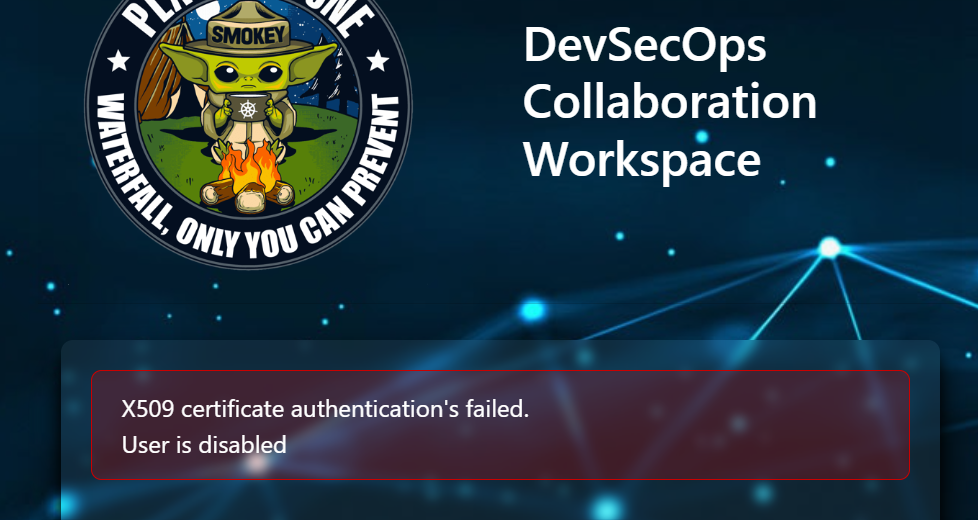
Trouble setting a password?
Email aflcmc.hncx.p1cst@us.af.mil and ask for a password reset. You’ll get a link to set a new one.
More Platform One help
See the Platform One contact page at p1.dso.mil/contact-us (opens in a new tab). On the AF network, you can also reach James Piazza or David Autio.